WhatsApp AI Agent

An AI agent that works
your WhatsApp inbox

The WhatsGrow AI agent reads every incoming WhatsApp message, replies from your own business knowledge, asks the qualification questions you set, and updates the contact and pipeline in your CRM. When a conversation needs a person, it hands over with context.

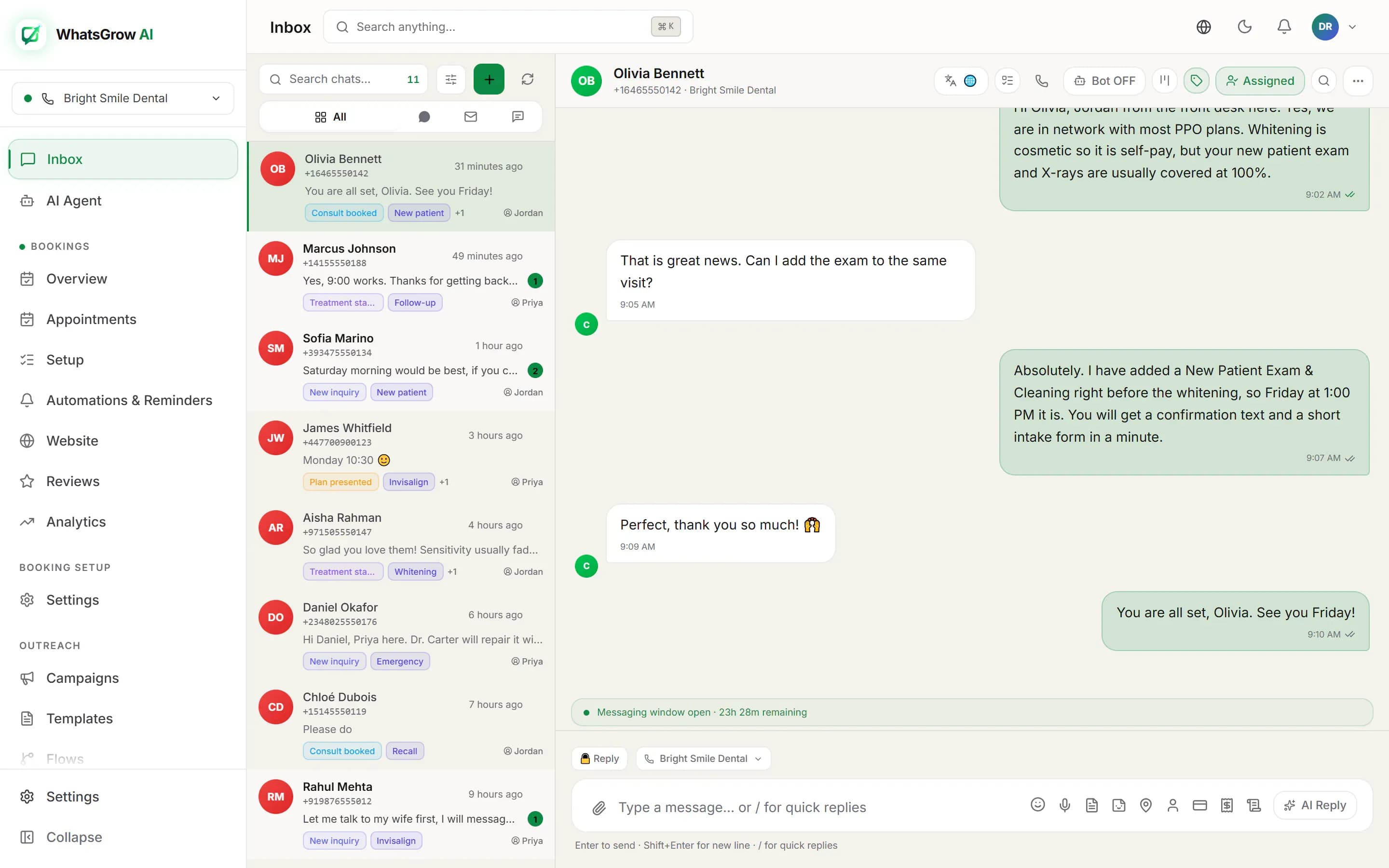
WhatsGrow AI shared WhatsApp inbox showing conversations handled by the AI agent alongside the team
AI replies and human replies live in the same inbox thread, so your team always sees what was said.

How the AI agent works

Setup lives on one page in the dashboard (AI). These are the steps, in the order most teams do them.
  1. 1

    Connect your WhatsApp Business number

    The agent runs on the official WhatsApp Cloud API through your Meta Business account. If you have not set that up yet, the WhatsApp Business API setup guide walks through it.

  2. 2

    Describe the business and how it should talk

    On the "How it talks" tab you give the business name, what you sell, the target customer and the sales goal, then pick a style (WhatsApp style, sales-focused, support, friendly, professional or detailed) and a reply length of short, medium or detailed. There is also a dialect preference for English (American, British, Pakistani, Indian) and Arabic (Modern Standard, Gulf, Egyptian, Levantine).

  3. 3

    Add what it should know

    Paste FAQs, prices and policies as text, link a page on your website, or upload PDF, DOCX, TXT or XLSX files. Each source is processed into searchable chunks, and you can refresh or delete it later. "Learn from my chats" can also read your recent real conversations and draft instructions that match how you already talk to customers.

  4. 4

    Decide what to ask and when to step aside

    On "What to ask" you turn lead fields on or off (name, budget, service interest, city, email and so on) and mark which are required. On "Call a human" you set the handoff triggers and keywords, and a confidence threshold below which the AI hands over rather than guesses.

  5. 5

    Switch on the actions it may take

    In Advanced, toggles control what the AI can do on its own: save customer details, update contact info, move the pipeline stage, create follow-up tasks, hand off to a human, send invoices or payment links. Payment links are marked high risk and need human approval by default. You can also set the hours the AI is active and the mode per channel.

  6. 6

    Test, then go live

    Use "Try it" to chat as a fake customer and see the intent, confidence and extracted fields behind each reply. When you are happy, leave WhatsApp on automatic and watch real conversations in the inbox.

What the agent can actually do

Everything below is a switch or setting in the AI page, not a roadmap item.

Answer from your knowledge

Replies draw on the instructions and knowledge sources you provided, so answers about prices, hours and policies come from your material.

Qualify and save details

It asks for the fields you enabled and writes the answers into the contact record, including custom fields you define for your business.

Move deals along

With the tool enabled, it moves the lead to a different pipeline stage when qualification is done, and can add labels and internal notes.

Create follow-up tasks

It can schedule a follow-up task for your team, assign a conversation to an agent or department, or schedule a callback reminder.

Understand voice and photos

Customer voice notes are transcribed before the AI replies, and photos are passed to the model. With the voice capability on (plan-dependent), it can answer a voice note with a voice note.

Industry tools

Extra tabs appear for stores (order lookup, stock check, product sharing), appointments (availability, booking, reschedule, cancel), property, restaurants, education and travel.

Behind the scenes, replies are debounced for a few seconds per conversation, so a customer who sends three short messages in a row gets one considered answer, not three. Conversations also keep a rolling history window so the AI remembers what was said earlier in the thread.

Three worked examples

These show the pattern. Your stages, fields and wording will differ.

Real estate: a lead from a Meta ad

A buyer taps a Click-to-WhatsApp ad for a two-bedroom and writes, 'Is this still available?'

  1. 1.The AI confirms what it knows from your listing data and asks budget, preferred area and timeline.
  2. 2.It saves the answers to the contact through the save-details tool.
  3. 3.It moves the lead from New lead to Qualified and creates a follow-up task for the assigned agent.
  4. 4.If the buyer asks for a viewing or a call, a handoff rule passes the chat to a person with a summary.

Clinic: booking outside opening hours

At 9pm a patient asks for a Thursday-afternoon slot with a physiotherapist.

  1. 1.The AI lists services and locations from the appointments setup.
  2. 2.It checks availability for the date, offers the open slots and books the one the patient picks.
  3. 3.If the patient later reschedules or cancels, the same tools handle it.
  4. 4.Anything clinical or urgent trips a handoff rule and goes to staff.

Online store: where is my order?

A customer messages 'Order 4821 not arrived' on a Sunday.

  1. 1.The AI looks up the order and its status through the store tools.
  2. 2.It replies with the status in the customer’s language.
  3. 3.For an address fix it updates the order address; for a refund request it hands off.
  4. 4.The exchange is logged in the inbox so Monday’s team sees it.

Limits and rules you should know

Meta sets these, not WhatsGrow, and they apply to every WhatsApp AI tool.

Is it right for you?

It works best when customers ask the same twenty questions all day and your team loses leads to slow replies at night or on weekends. It works less well if every conversation is bespoke negotiation: there, use the AI to qualify and book, and let people close. If you are comparing tools, the comparison pages show how WhatsGrow AI stacks up against Wati, AiSensy and others, and the pricing page lists plans in your local currency.

For a longer walkthrough, read our guides on the AI WhatsApp chatbot and the AI sales agent for WhatsApp.

Frequently asked questions

What is a WhatsApp AI agent?

A WhatsApp AI agent is a language-model assistant connected to your WhatsApp Business number. It reads each incoming message, answers from the knowledge you gave it, asks qualification questions, and can take actions in your CRM such as saving details, moving a lead to another pipeline stage or booking an appointment.

Is it a keyword chatbot?

No. A keyword bot matches fixed phrases and follows a script. The WhatsGrow AI agent generates each reply from the conversation so far, your instructions and your knowledge base, and it calls tools to do things. If you want deterministic scripted steps as well, you can combine it with automation flows.

Can the AI reply outside the 24-hour window?

Free-form replies, AI or human, are only allowed by Meta while the customer service window is open, which is 24 hours after the customer last messaged you. After that, a business-initiated message has to be an approved template. The agent respects this: it answers inbound messages, and anything proactive outside the window needs a template.

What happens when the AI cannot answer?

You choose the handoff rules on the "Call a human" tab: low confidence, the customer asks for a person or a call, an angry customer, a custom-pricing request, or your own handoff keywords. When one fires, the conversation goes to a team member with a summary instead of the AI guessing.

Which AI model does it use, and do I need my own API key?

On the Advanced tab you pick how the AI is powered. WhatsGrow can run the model for you, or you can connect your own OpenAI, Google Gemini or Anthropic account. Usage is metered against your plan; see the pricing page for current limits.

Can I test it before customers see it?

Yes. The "Try it" tab is a simulator: you send fake customer messages, including images, and see the reply plus the detected intent, confidence, extracted fields and which tool calls would have run. Nothing is sent to a real customer.

Keep exploring

Stop losing leads after hours

Set up the agent, test it in the simulator, and go live. 7-day free trial.

Deploy Your AI Agent Free