WhatsApp Automation

Automate WhatsApp with flows
you draw, not code

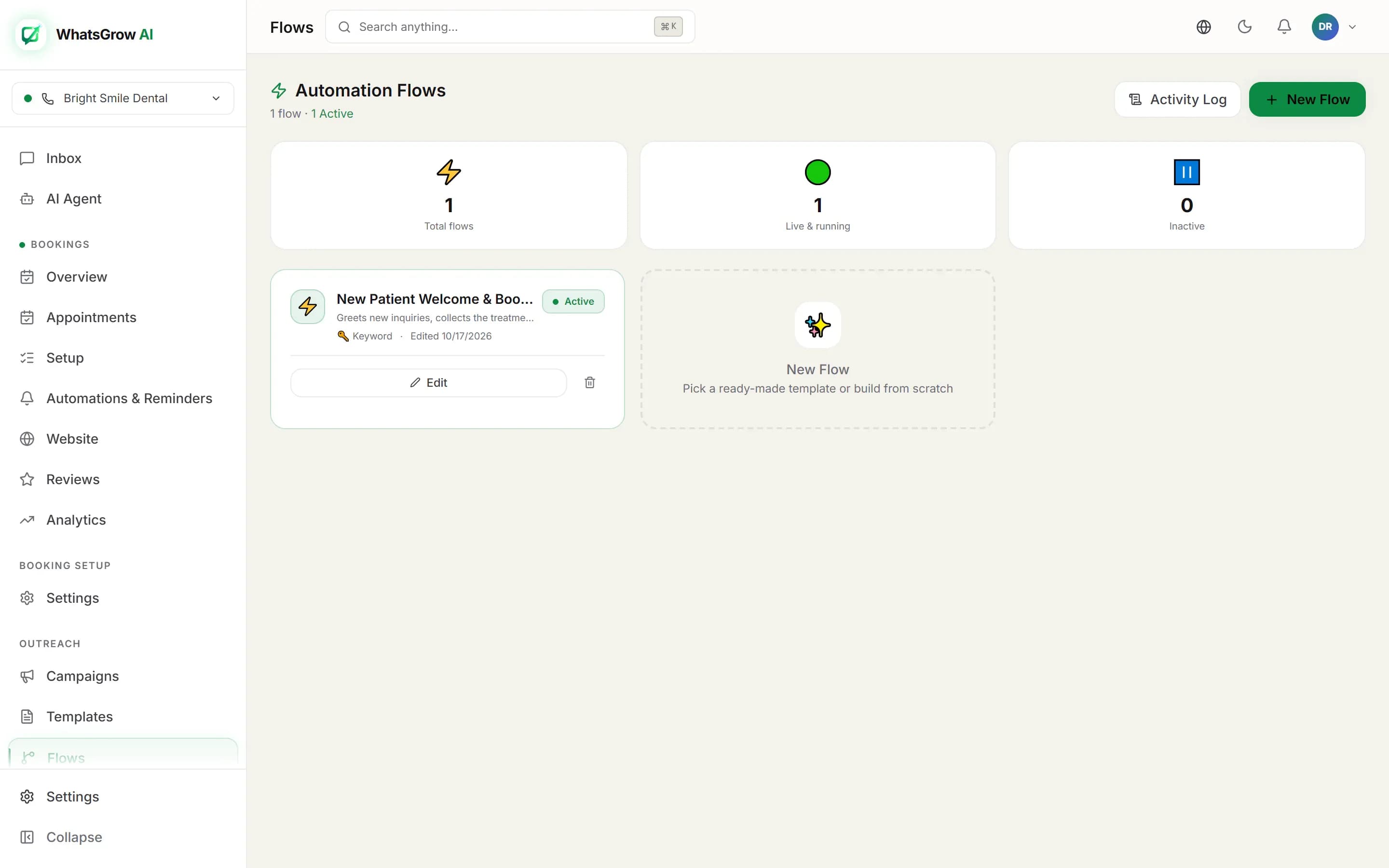
WhatsApp automation in WhatsGrow AI is a visual flow builder. You pick a trigger, then chain steps that send messages, ask questions, wait, tag contacts, move deals through your pipeline and route chats to the right agent.

WhatsGrow AI flow builder showing a WhatsApp automation flow with trigger, condition and message nodes
The flow canvas: each box is a node, each line is the path a contact follows.

Start with a trigger

Every flow begins with one trigger node. These are the five that exist today.
Keyword
Fires when an incoming message matches one of the keywords you list.
Any message
Fires on any inbound message, useful for a greeting or an after-hours reply.
Campaign reply
Fires when a contact answers one of your broadcast campaigns.
Opt-in
Fires once, the first time a brand-new contact messages your number. Good for a welcome flow.
Inactivity
Fires after a silence you set in minutes, hours or days. A background job checks every five minutes.

One thing it does not have: an inbound webhook trigger that starts a flow from your own system. The HTTP Request node goes the other way, calling an outside URL from inside a flow. When a flow handles a message, the AI auto-reply stays out of the way for that message, so the two do not talk over each other.

The building blocks

Twenty-four step types after the trigger, grouped as they appear in the editor. You can use any of them in any order.
GroupNodesWhat they do
MessagesSend Message, Send Template, Send Document, Send ListText, image, reply buttons, or an AI-written message from an instruction you give. Lists let the customer pick from a menu.
CollectCollect InputAsks a question and saves the answer to a field. Validates phone, email or number, re-asks a set number of times, and times out if the customer goes quiet.
LogicCondition, Time Condition, Random Split, Loop LimitBranch on a field (equals, contains, is set, greater than and more), on day and time in a timezone, on a percentage split, or cap runs per contact.
CRMAdd Label, Remove Label, Set Field, Move Pipeline Stage, Update Lead ValueWrites straight to the contact and to the deal on your pipeline.
TeamAssign Agent, Internal Note, Notify Agent, EscalateEight assignment modes: specific agent, round robin, least busy, by schedule, by time of day, by department, by skill keyword, and failover.
TimingDelayWait seconds, minutes, hours or days, then continue.
IntegrationsHTTP Request, Add to Campaign, Create Task, Opt Out, End FlowCall an outside URL with GET, POST, PUT, PATCH or DELETE and keep the response; enrol the contact in a campaign; open a task; or close the flow.

Messages can use the contact's data with placeholders such as the name or any field you collected earlier in the flow. A button or list node can pause the flow and branch by what the customer taps, with a fallback path for anything else.

How to build your first flow

  1. 1

    Start from a template or a blank canvas

    Open Flows and pick a template such as Lead Qualification, Appointment Booking, FAQ Bot, Follow-up Sequence or Payment Reminder, or start empty.

  2. 2

    Set the trigger

    Choose keyword, any message, campaign reply, opt-in or inactivity, and list the keywords or the silence period.

  3. 3

    Add the steps

    Drag nodes onto the canvas and connect them. Ask questions with Collect Input, branch with Condition, wait with Delay.

  4. 4

    Write back to the CRM

    Add a label, set a field, move the lead to a pipeline stage or set a deal value, so the board reflects what happened in the chat.

  5. 5

    Test it, then switch it on

    Run it in the test panel, toggle the flow to live, and watch runs appear in the logs with a Running, Completed, Dropped or Error status.

Three flows teams actually run

Lead qualification for a service business

Anyone who writes 'price' or 'quote' enters the flow.

  1. 1.Collect Input asks name, budget and timeline, validating the budget as a number.
  2. 2.A Condition node checks the budget field against your threshold.
  3. 3.Hot leads: Move Pipeline Stage to Qualified, Assign Agent by round robin, Notify Agent.
  4. 4.Others: Add Label Nurture and end the flow.

Three-step follow-up after a quote

A salesperson tags the contact 'Follow Up' after sending a proposal.

  1. 1.Delay one day, then Send Template with a short check-in.
  2. 2.Delay two more days, then send a second template with a case study or offer.
  3. 3.If the contact replies, a Condition sends them to an agent; otherwise Create Task for a call.
  4. 4.Loop Limit stops the same contact from entering twice in a month.

Quiet-lead re-engagement

A lead asked for details and then went silent.

  1. 1.The Inactivity trigger fires after, say, two days of silence.
  2. 2.Time Condition checks it is inside business hours in your timezone.
  3. 3.Send Template re-opens the conversation with an approved message.
  4. 4.Update Lead Value or Move Pipeline Stage records the result.

Rules that shape your automations

Frequently asked questions

What is WhatsApp automation?

WhatsApp automation means a system sends or routes WhatsApp messages without a person typing each one. In WhatsGrow AI you draw a flow: a trigger such as a keyword, then steps like sending a message, asking a question, waiting, tagging the contact, moving the lead in your pipeline or assigning an agent.

Do I need to code to build a flow?

No. Flows are built on a canvas by adding and connecting nodes. There are ready-made templates for lead welcome, lead qualification, appointment booking, FAQ, support tickets, payment reminders, onboarding, re-engagement and opt-out handling that you can copy and edit.

What is the difference between a flow and the AI agent?

A flow follows the path you drew, which makes it predictable. The AI agent writes its own replies from your knowledge base. They work together: a flow can include an AI-written message step, and the AI agent can move pipeline stages and create tasks on its own.

Can a flow message someone after 24 hours of silence?

Only with an approved template. Meta lets you send free-form messages for 24 hours after the customer last wrote. A flow that waits longer than that, for example a three-day follow-up, should use the Send Template node. The inactivity trigger does the same job: it fires after a silence you choose, so pair it with a template.

How do I see whether a flow worked?

Open Flows, then the logs view. Every run is listed with a status of Running, Completed, Dropped or Error, and you can filter by flow and by status. The flow builder also has a test panel so you can try a flow before switching it on.

Can I stop people from getting the same flow repeatedly?

Yes. The Loop Limit node caps how many times a flow may run for the same contact, per day, week, month or ever. An Opt Out node marks the contact as opted out and sends a confirmation message of your choice.

Related

Not sure when to use a flow and when to use AI? Our WhatsApp automation guide compares the two, and the AI agent page covers the free-form side. Plans are on the pricing page.

Build your first flow today

Start from a template, test it, and switch it on. 7-day free trial.

Build Your First Flow Free